Introduction
LightSwitch is very powerful to build apps, but often, the standard LightSwitch controls, buttons and their appearances do not reflect your needs.
In this article, I will show you an easy way to build buttons with a custom icon.
Prerequisites
For this article I used Visual Studio Update 3 and created a new LightSwitch HTML project.
Building icons from scratch is not my best. :-( So I did a bit research and found this:
Syncfusion Metro Studio. This is a free and powerful tool to create icons from existing templates. If you want to you can buy additional icons from their website.
Let’s start…
First, let’s build a simple “Home” button icon.
Open Metro Studio, you will see this:
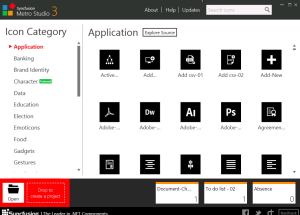
Now, we are looking for a fancy icon. Type a keyword in the search box. In our case, we will try “home” ;-):

Let’s take an icon and edit this for our needs (the settings here are ok for our new button):

Then, click “export” and save the image to your LightSwitch project. (I created a folder “Icons” under the “Content” folder.)
Customizing CSS
Open the “user-customization.css” (or any other css file) from your project and add following lines (customize the background image URL to your needs!):
.msls-footer .myHomeIcon .msls-large-icon .ui-icon {

    background-image: url("Icons/icon-home.png") !important;

    background-position-x: 0px;

    background-position-y: 0px;

}
Things to do in a screen
Next, open a screen from your LighSwitch project and add a button to the command bar node:

In the properties window, set “Custom” to icon property.
Last, in the post render method of your new button, add following line of javascript code:
$(element).addClass("myHomeIcon");
Done.
Open your screen and you will find a button with your new icon:

That’s all for now, folks!


 d-fens GmbH