Last week I had to deal with Visual Basic in Microsoft Visio Professional 2016. I wanted to fill a ListBox with items containing data from an Excel file. First I searched for a ListBox shape in the shapes pane of Visio and added a ListBox shape to the sheet.
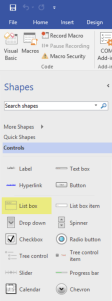
However I could not access it in Visual Basic code as pointed out in several examples I found in the internet. And also the View Code context menu item was not available…
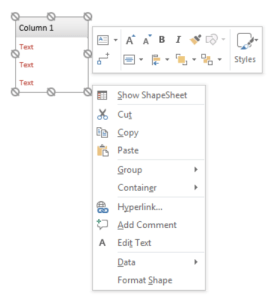
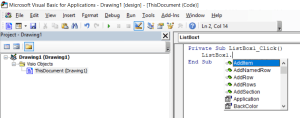
I first couldn’t figure out, why accessing and filling the ListBox in Visual Basic didn’t work. I almost despaired until I figured out, that the developer tab was not activated. After activating the developer tab I realized, that there is an item to insert different controls (ActiveX controls) including a ListBox control.
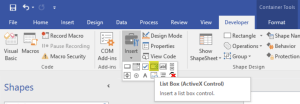
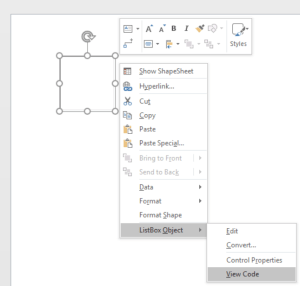
From then on, my problems solved themselves. I added the ListBox control to the sheet and in the context menu of the ListBox control the View Code item was available and I also was able to access the ListBox control in Visual Basic code.
UPDATED
Below you find the code that was used to fill the ListBox with items from the Excel file when clicking on a specific button.
Important: In code editor you have to add reference Microsoft Excel 16.0 Object Library under Tools > References….
Private Sub BtnFillListBox_Click()
    FillListBox
End Sub

Private Sub FillListBox()
    On Error GoTo ErrHandler

    Dim xlApp As New Excel.Application
    Dim xlWB As Excel.Workbook
    Dim thisPath As String

    xlApp.ScreenUpdating = False

    ‘Open the Excel workbook in “READ ONLY MODE”, which has to be in the same directory as the Visio file.
    thisPath = ThisDocument.Path
    thisPath = thisPath & “FILENAME.xlsx”
    Set xlWB = xlApp.Workbooks.Open(thisPath, True, True)

    Dim worksheet As Excel.worksheet
    Set worksheet = xlWB.Worksheets(“WORKSHEET_NAME”)

    ‘Get the total rows from the workbook
    Dim iTotalRows As Integer
    iTotalRows = worksheet.Range(“A1:A” & Cells(Rows.Count, “B”).End(xlUp).Row).Rows.Count

    ‘Find cell containing a specific text (ROWHEADER is a placeholder)
    Dim rgFound As Excel.Range

    Set rgFound = Cells.Find(What:=”ROWHEADER”, _
                    After:=Range(“A1”), _
                    LookAt:=xlWhole, _
                    LookIn:=xlValues, _
                    SearchOrder:=xlByRows, _
                    SearchDirection:=xlPrevious, _
                    MatchCase:=True)

    If (Not rgFound Is Nothing) Then
        ‘Load all entries of row below specified header
        Dim rangeWithItems As Excel.Range

        Set rangeWithItems = worksheet.Range(Col_Letter(rgFound.Column) & (rgFound.Row + 1) & “:” & Col_Letter(rgFound.Column) & (iTotalRows – rgFound.Rows.Count))

        ‘Clear list box
        ArbitraryListBox.Clear

        ‘Add items from Excel worksheet to list box
        For Each c In rangeWithItems.Cells
            With c
                ArbitraryListBox.AddItem .Value
                ‘Debug.Print .Address & “:” & .Value
            End With
        Next c
    End If

    ‘Close the Excel workbook
    xlWB.Close False
    Set xlWB = Nothing

ErrHandler:
    xlApp.EnableEvents = True
    xlApp.ScreenUpdating = True
End Sub

I'm a software engineer working at isolutions AG


 d-fens GmbH
This is what I need to be able to do in visio, could you provide the rest of the code that was used to complete the task?
Hi,
I just updated the blog post with the code I used to fill the ListBox control with items from an Excel file when clicking on a specific button.
Also, do you know if there is a way to have the list expand like a tree control item?
Hi
I’m sorry. Unfortunately I don’t know, if it’s possible and how to do that.